How To Use A Command Block In Minecraft
Discover how to use a command block in Minecraft. Learn commands, setup tips, and creative ways to automate tasks and build powerful contraptions.

Shahrukh Sial is a Gaming Content Strategist at Sparked Host. He identifies his own strategic outlines through deep research to cover game guides, tips, and updates that help players improve their skills and enjoy a better gaming experience.
Have you ever wanted to create a custom mini-game, a secret teleportation system, or an automated farm in Minecraft? The command block is the key to making all of that happen.
Command blocks are one of the most powerful and versatile items in the game, allowing you to automate complex tasks and bend the rules of the Minecraft world. This guide will walk you through everything you need to know about using a command block, from getting one to understanding the different block type options.
What Is A Command Block In Minecraft?
A command block is a special kind of block that can execute game commands.
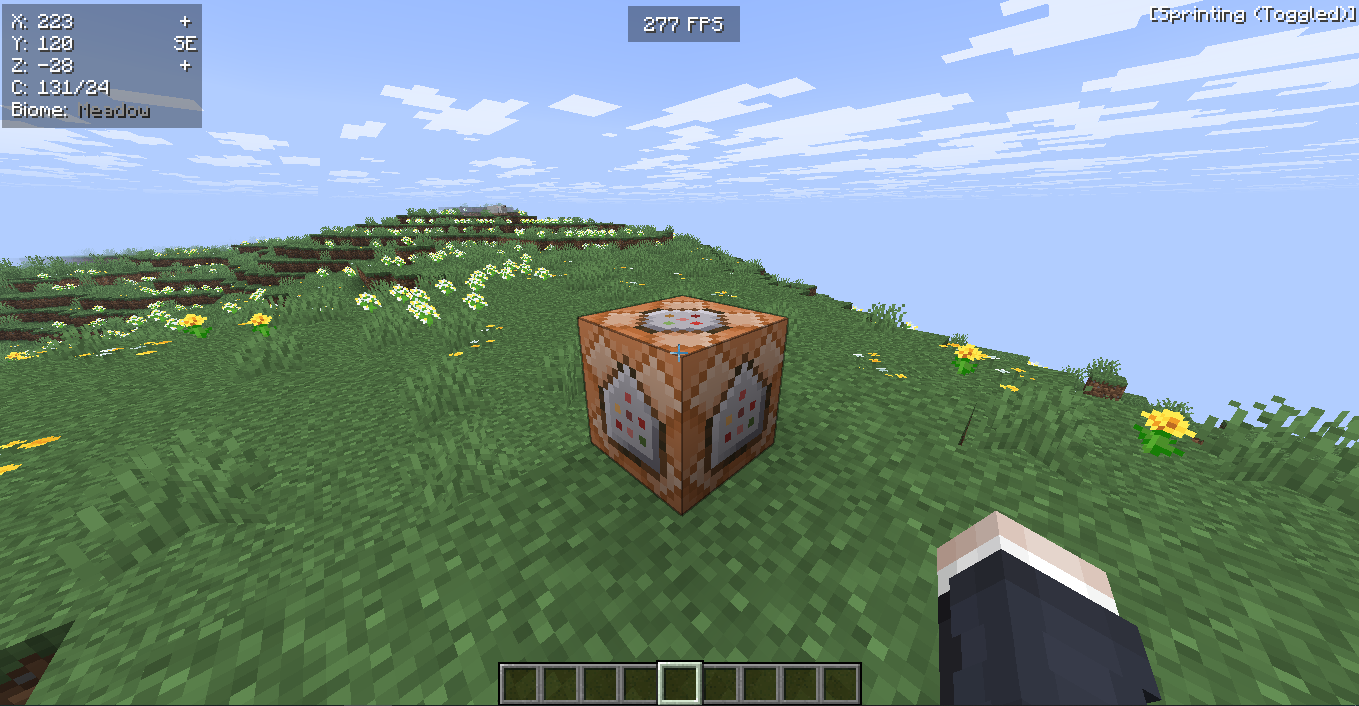
Think of it as a programmed brain for your redstone creations. Instead of you having to manually type a command into the chat window over and over again, a command block can do it for you automatically when activated by a redstone signal. This makes it an essential tool for players who want to build advanced maps and custom worlds.
Enabling Command Blocks In Minecraft
To enable command blocks, you must have cheats enabled in your Minecraft world.
In Single Player
When you create a new world, make sure to toggle the Allow Cheats option to ON in the world settings. If you already have a world, you can temporarily enable cheats by opening the game menu and choosing Open to LAN and then toggling Allow Cheats to ON.
On A Minecraft Server
You need to have operator status. A server admin can grant you this by typing /op [your username] in the server console. The server's settings must also have command blocks enabled.
Once cheats are enabled, you can get a command block.
How To Get A Command Block In Minecraft
Open your chat window (by pressing 'T' or the right D-pad button on a controller) and type the following command:
/give @p minecraft:command_block
This will instantly give a command block to the nearest player (@p). You can change the 1 to any number if you want more than one command block.
In Java Edition
You get a command block by using the /give command.
-
Press T to open the chat window.
-
Type the following command: /give @s command_block.
-
Press Enter.
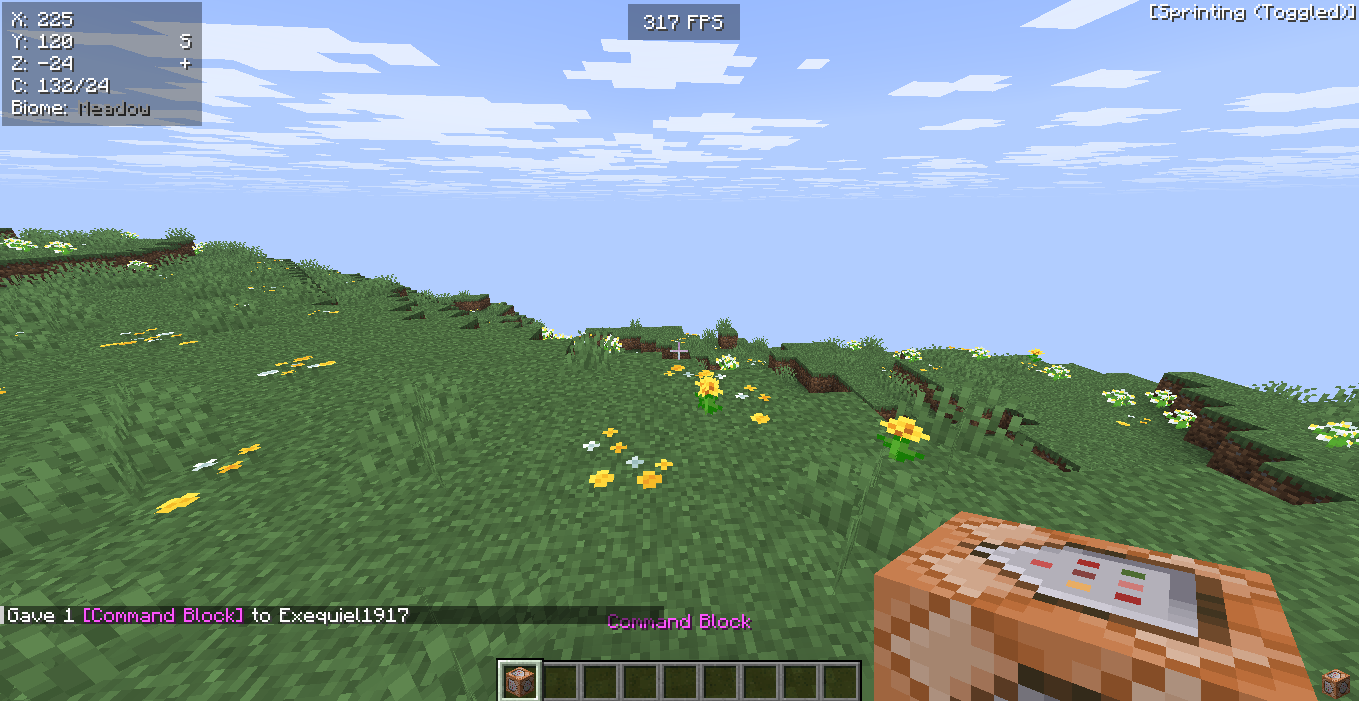
This will place a command block directly into your inventory. The @s selector means it will give the item to yourself. You can also use @p to give it to the nearest player.
In Bedrock Edition
The command is almost identical for Bedrock Edition on PC, console, or mobile.
-
Open the chat window.
-
Type the following command: /give @p command_block.
-
Press Enter.
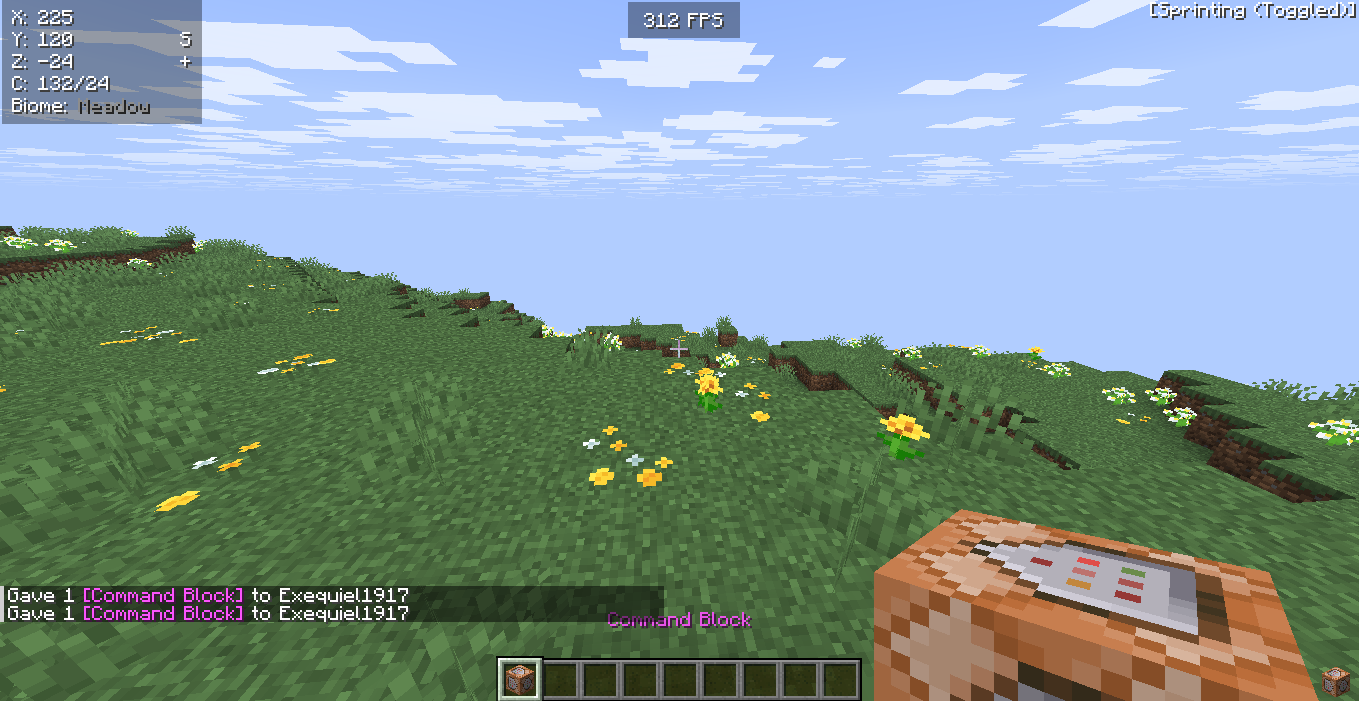
This command will give a command block to the nearest player. Remember that for this to work, you must have Activate Cheats enabled in your world's settings.
Using a Command Block in Minecraft
Once you have your command block, using it is simple. The first thing you need to do is place the block.
Placing and Entering a Command
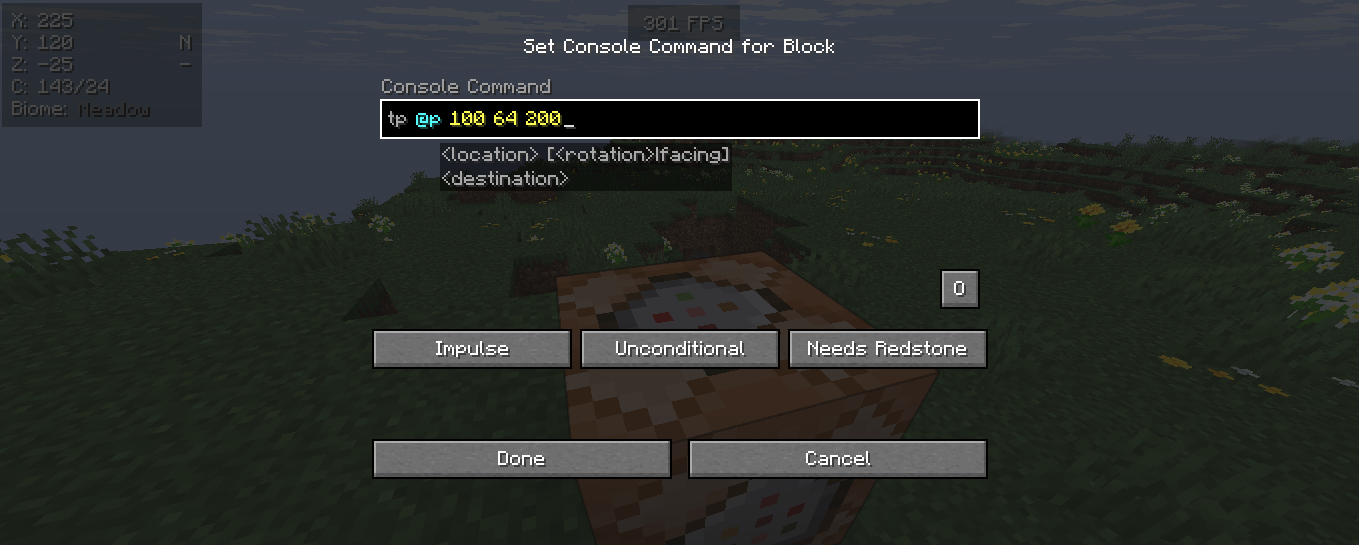
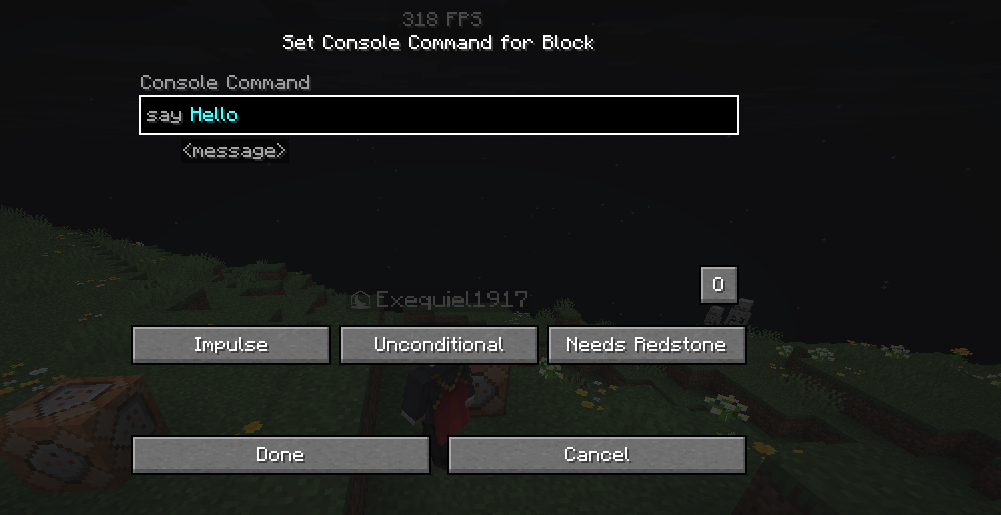
Place the command block on the ground. Right-click the block to open the command block interface. You'll see a text box where you can type your command. When you type a command into the text box, do not use a forward slash (/) at the beginning.
Example:
-
To get a command to teleport the nearest player, you would enter tp @p 100 64 200 in the text box.
-
The full command is tp @p 100 64 200.
Powering the Command Block
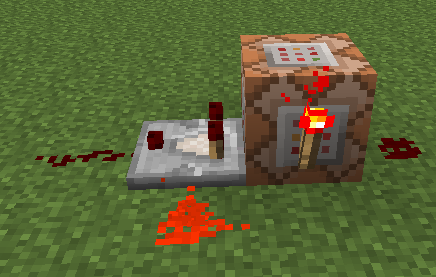
A command block needs a redstone signal to execute the command you have entered. You can power a command block using a button, a lever, a pressure plate, or even a redstone torch. Once the command block receives redstone power, the command is executed.
Types Of Command Blocks
There are three main types of command blocks, each with a different color and function. You can change the block type in the command block interface by right-clicking it.
Impulse Command Blocks (Orange)
This is the default block type. Impulse command blocks execute their command just one time when they receive a redstone power signal. They are best for single-use actions.
Example: Place an impulse command block and a button on the block. Type say Hello! in the text box. When you press the button, the command is executed, and it will only say "Hello!" once.
Repeat Command Blocks (Purple)
Repeating command blocks execute their command every single game tick (20 times per second) as long as they have a redstone power signal. This is great for continuous effects.
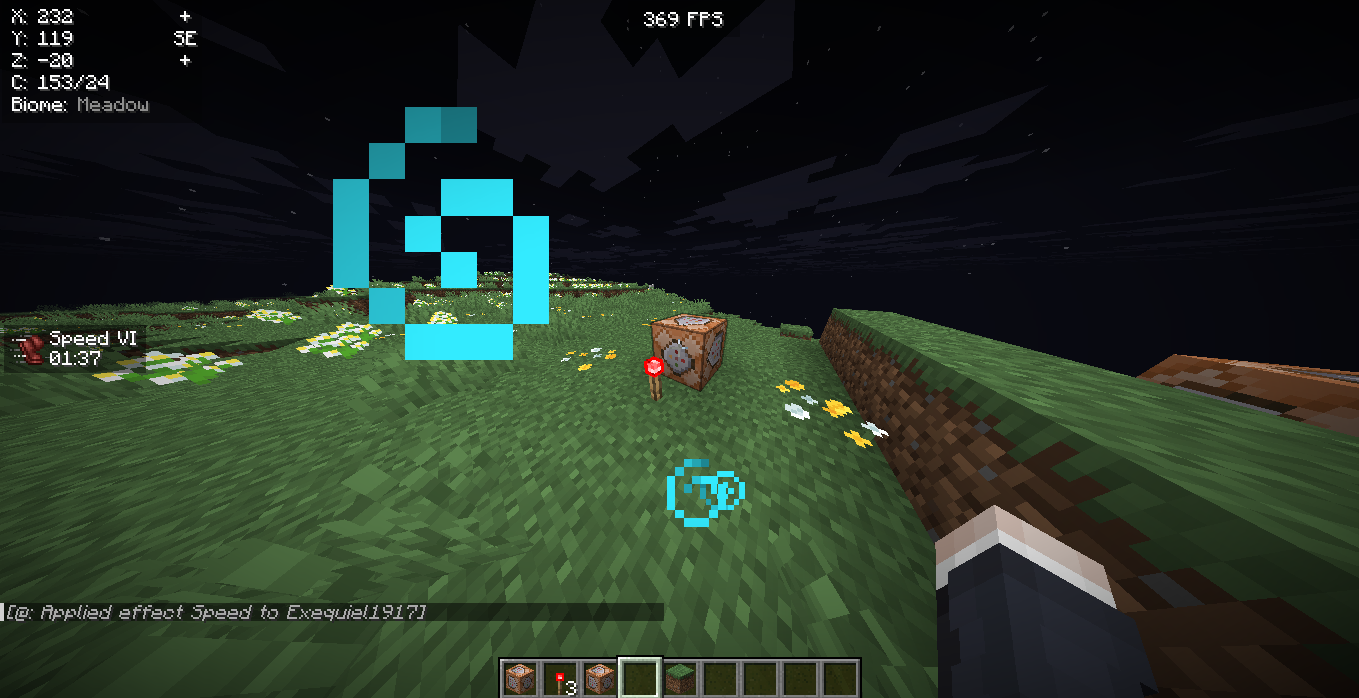
Example: Place a repeating command block and set it to Always Active. Type the command effect give @p minecraft:speed 100 5 in the text box.
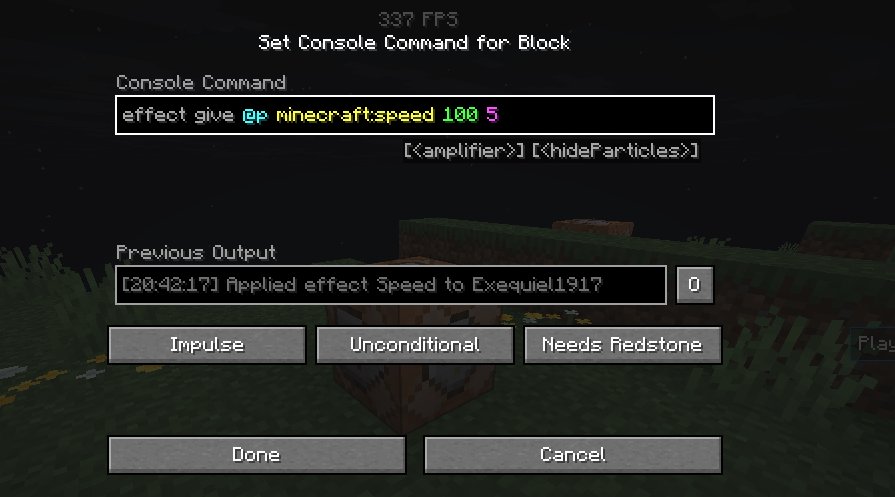
The repeating command block will constantly give the nearest player a speed boost. These repeating command blocks are the best for creating persistent effects in the game.
Chain Command Blocks (Green)
Chain command blocks are special because they only execute a command when another command block successfully runs its command and powers it. They are used to create a command block chain.
This block type is essential for running a sequence of game commands in a specific order. The command is executed in the same tick as the previous command.
Example: Place an impulse command block, and then a chain command block right next to it, making sure the arrow on the chain command block points away from the impulse one.The first block could be a teleport command, and the second chain command block could be a command to play a sound effect right after you've teleported. The command executed in the chain command blocks is dependent on the previous command in the chain.
List Of All Minecraft Command Block Commands
A command block can use almost any command that you can type into the chat window. Here are a few great examples to get you started:
-
Summoning mobs: /summon minecraft:creeper will spawn a creeper at the block's location. You can change creeper to zombie, cow, or any other mob.
-
Giving items: /give @p minecraft:diamond 64 will give the nearest player 64 diamonds.
-
Changing the game world: /time set day will change the time to day. /weather clear will stop rain or snow.
-
Teleporting: /tp @p 100 64 200 will instantly move the nearest player to the coordinates X=100, Y=64, Z=200.
-
Playing sounds: /playsound ambient.cave @a will play a cave sound for all players.
Conclusion
The command block is a powerful in-game feature for any Minecraft player who wants to go beyond the basics of survival mode and creative mode. While it might seem a little intimidating at first, understanding the different block types like impulse, repeat, and chain will allow you to execute commands to create amazing things.
Even if you're building an adventure map, a minigame, or a simple redstone signal contraption, a command block can help you bring your ideas to life. Start with a simple command and see what you can create.