The #1 Mistake Server Owners Make After a Major Minecraft Update
Avoid common pitfalls in Minecraft server updates that can disrupt gameplay. Learn what mistakes to sidestep for a seamless experience. Read more!

Shahrukh Sial is a Gaming Content Strategist at Sparked Host. He identifies his own strategic outlines through deep research to cover game guides, tips, and updates that help players improve their skills and enjoy a better gaming experience.
Is your community about to crash because you hit the update button too fast? Nothing ruins a thriving server faster than a sudden and permanent world corruption or a wave of angry players who cannot log in. This guide will show you exactly how to avoid the most dangerous mistake in server hosting today.
Updating your live server without a safety net is a huge gamble that rarely pays off for you. Version changes often break core plugins, corrupt world files, and spike your memory usage in an instant. By rushing into an update, you risk losing weeks of player progress and destroying the community you worked so hard to build.
Proper preparation is the only way to ensure your server remains stable and fast throughout 2026. This guide breaks down the essential steps to test your files, protect your data, and scale your resources the right way. Follow these strategies to keep your world running perfectly while other servers struggle with downtime.
Key Takeaways
-
The biggest mistake is updating the main server too quickly after a big Minecraft update.
-
Always make a full backup before changing anything.
-
Test new plugins, mods, or updates on a separate test server first.
-
Updates can break plugins or cause world corruption if not checked.
-
A staging environment helps you find problems before players see them.
-
Waiting for stable plugin versions is safer than rushing.
-
Protecting your world data saves time, money, and keeps players happy.
Why Updates Break Minecraft Server Environments
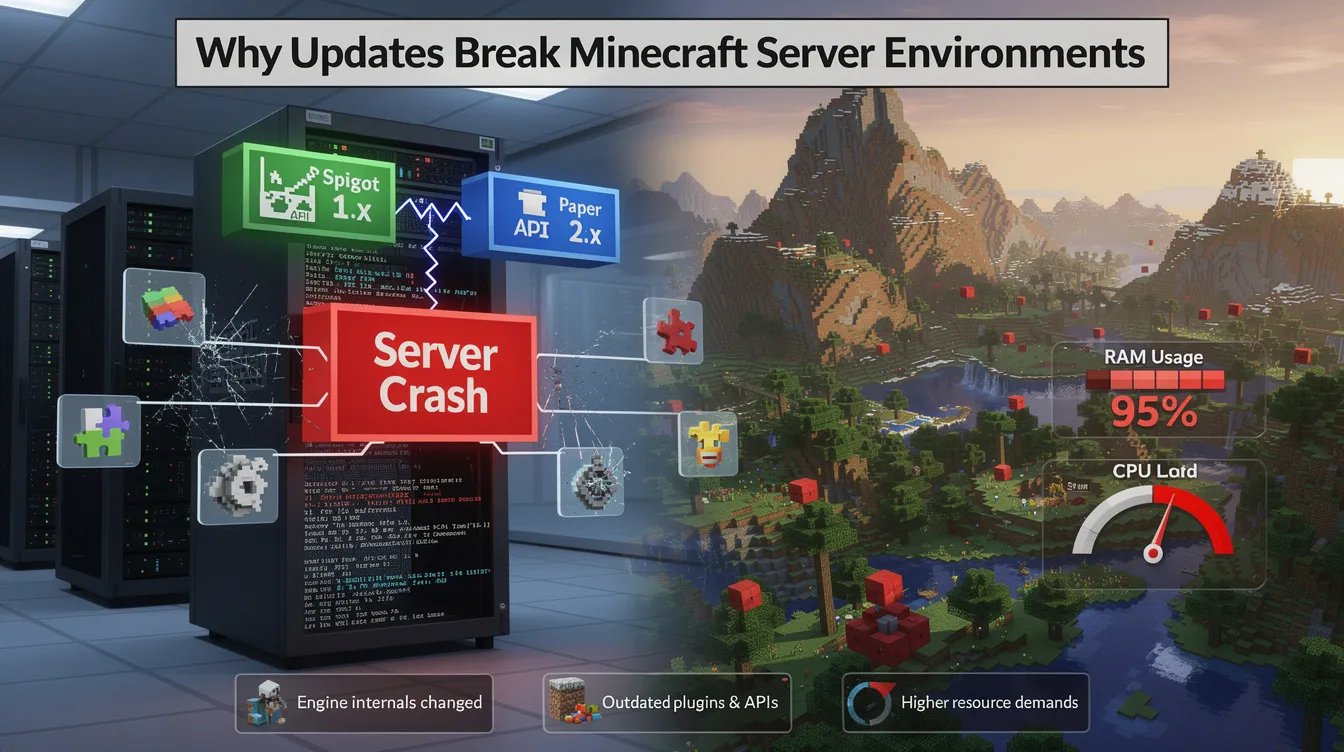
Minecraft updates change the fundamental way the game engine processes data. Plugins, mods, and custom datapacks rely on specific internal code that often changes or gets removed whenever a new version is released. If your server software expects an old code structure and the new engine provides something different, the server will naturally fail to start up.
Furthermore, many popular plugins depend on specific versions of the Spigot or Paper API. When you update the game without updating these plugins, the server will throw errors because the plugins cannot communicate with the newer game files. This mismatch is a primary cause of server instability.
Additionally, newer game versions often require significantly more RAM to handle complex world generation and new biomes. Failing to account for these increased hardware demands is why many servers crash immediately after a version jump. You must always read the official patch notes to see which game systems have changed before you start your update, as this will tell you if you need to upgrade your Minecraft enterprise hosting plan or adjust your performance settings to match the new requirements.
The #1 Minecraft Server Update Mistake Admins Make: Updating Live Servers Immediately
The most common error is applying an update to your live, player-accessible world without performing a trial run first. When you update a production server, you are betting your entire community progress on the hope that every single plugin and mod is already compatible with the new code. This often leads to immediate server shutdowns that you could have easily prevented.
If a mod is broken or a plugin conflicts with the new version, your server will crash on launch. Your players will be unable to log in while you scramble to find a fix for the broken files. This downtime is entirely avoidable if you follow the simple rule of testing your files in a private, isolated space.
You should never assume your current setup will work after an update, because version changes are almost never perfectly backwards compatible with older, external content.
The Consequences of Rushing
When your server crashes after an update, the damage goes far beyond simple temporary downtime. Corrupted chunk data can lead to the permanent loss of player builds or their hard-earned inventories. If you do not have a reliable and recent backup, you may lose months of community progress that you simply cannot get back.
This loss of player trust is often much harder to fix than the actual server code. Players expect a reliable and consistent experience when they log in to your world every day. If they face constant crashes after an update, they will likely find a new server that offers more consistent uptime and better overall stability.
When a server goes down for a long period, you are effectively telling your players that their time in your world is not a priority, which often leads to a mass exodus of your most loyal members.
Solutions for a Safe Update Process with Automated Backups
The path to a safe update starts with a strict and organized plan. Always create a full, compressed world backup before you begin any changes. Keep an extra copy in the cloud, such as Google Drive, for better recovery protection. You should also set up a staging environment, which is essentially a duplicate of your server where you can test the update safely. Add an allow list on that test server so only approved users can access it, approve trusted friends personally, and confirm each username is correct.
In this staging environment, you should validate your plugins one by one. Check to see if each one is updated for the new version. After any server update, check configuration files for changes. Note that you may need to edit config files instead of assuming older settings still apply. If a plugin does not have a new version, you must find a replacement or remove it from your testing copy.
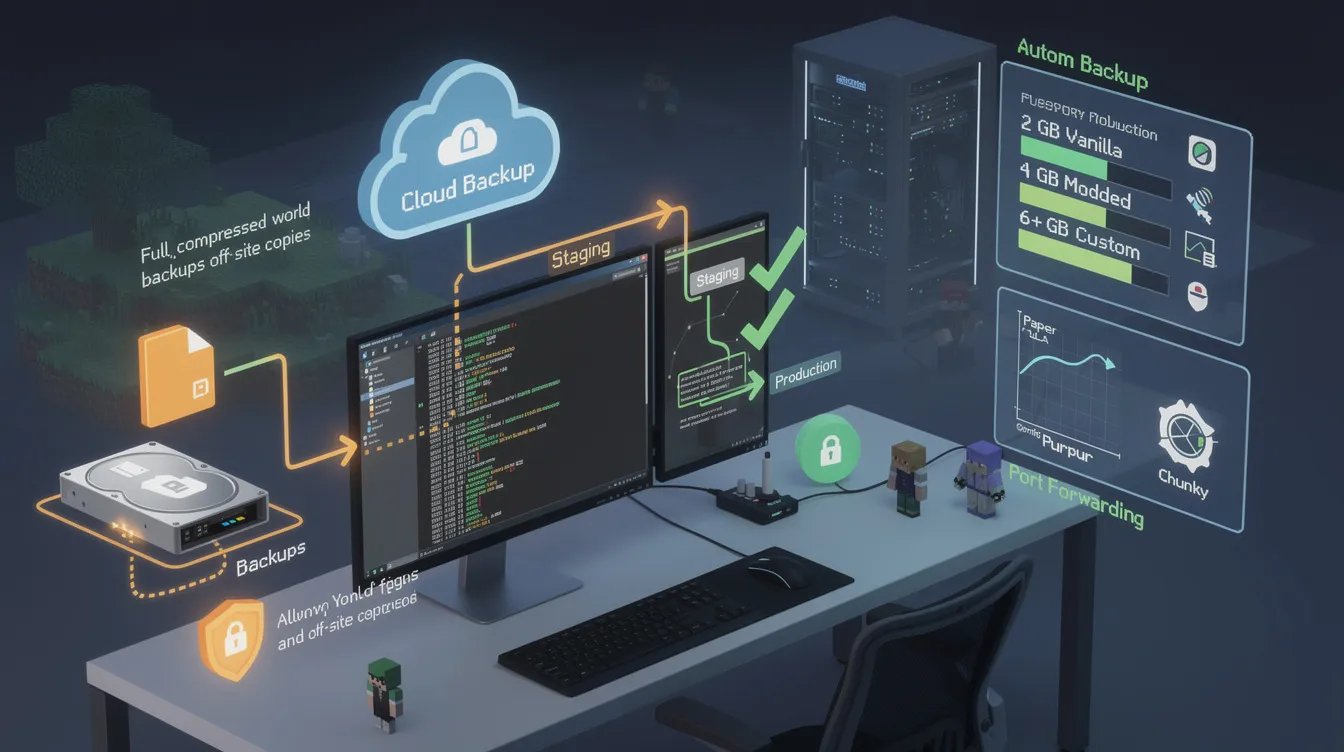
Also, make sure your RAM allocation meets the new demands of the game: vanilla servers can run on about 2GB, a modded server should have at least 4GB, and heavily customized setups may need 6GB or more. Choosing the right budget Minecraft hosting plan for your player count and plugin load helps keep these allocations consistent. For better optimization during update testing, use PaperMC or Purpur as your server software, and consider moving demanding communities to extreme Minecraft hosting hardware or other extreme Minecraft hosting plans when performance becomes a bottleneck.
Never deploy an update until you have fully confirmed that your core features work as intended in your test environment. Verify permissions, commands, and chat behavior before launch. Use Spark to identify lag spikes and plugin impact during testing. You can also pre-generate your world with Chunky before launch to reduce performance issues after updating. Configure port forwarding on the live server so outside players can connect, because a wrong port setup will block access. If you are unsure whether your configuration and resources are adequate, you can try a free Minecraft hosting trial to test performance before committing to a long-term plan.
If the new version performs worse, limiting mob farms, redstone tick rates, and entity limits can reduce lag. This extra hour of work saves you from days of technical headaches. By treating your server with care, you ensure that your community remains happy and engaged throughout the entire update process. After configuration changes or the update, itself, do a clean restart instead of relying on reload behavior.
Sparked Host Tools and Support Team for Safe Updates
Sparked Host provides the robust infrastructure you need to handle complex updates with total confidence. Their platform allows you to create instant backups before you start, giving you a reliable safety net if things go wrong. These backups are stored securely, and they’re even safer when paired with off-site cloud copies to an external destination like Google Drive, so you can restore your entire world to the exact state it was in before you touched the update files.
With enterprise grade hardware, easily scalable RAM plans, and the option to choose a server region close to your main players, you have the room to test new versions and keep your server responsive while benefiting from Sparked Host’s documented server hardware specifications. Their dedicated support team can also help you troubleshoot specific error logs, address performance issues, mention configuration mistakes, and identify when a broken change may be impossible to recover without backups. They can also advise on routine admin workflows during update windows, where automation or a bot can help keep things organized while you test.
Using a provider that understands the technical needs of modern server owners makes the whole process much easier. You get the professional tools and the expert support you need to keep your world running smooth with more reliable online performance by choosing a specialized Minecraft server hosting platform, broader game hosting services if you run multiple titles, or even complementary web hosting for your community site if you maintain forums or documentation alongside your servers.
Frequently Asked Questions
Here are answers to the most common questions server owners ask during updates.
What is the #1 mistake Minecraft server owners make after updates?
The #1 mistake is updating a live production server immediately without testing the changes on a backup or staging environment first.
Why does my Minecraft server crash after updating?
Crashes usually happen because existing plugins or mods are not compatible with the new game code, or because the server lacks enough RAM to handle the new version, especially on Minecraft Bedrock server hosting setups that are running close to their resource limits.
Do I need to back up my Minecraft server before updating?
Yes, a full backup is mandatory. Without it, a failed update can lead to permanent world corruption and total data loss.
How to test plugins after a Minecraft update?
Run your server on a local machine or a staging server copy, then start the server and watch the console for errors as you enable each plugin one at a time; for larger plugin stacks or heavy modpacks, using specialized modded Minecraft server hosting can make this process far smoother.
Best hosting solution for safe Minecraft updates?
A host like Sparked Host is ideal because they offer instant backups, easy staging options, and the hardware performance required to keep modern servers stable, with flexible budget Bedrock hosting plans available for smaller worlds, scalable enterprise Bedrock hosting options for larger Bedrock communities, and powerful dedicated server hosting for admins who need complete control over their environment.
Conclusion
A major update is an exciting time for a community, but it should never come at the cost of your server stability. By slowing down, creating thorough backups, and testing your setup in a controlled environment, you protect your players from unnecessary frustration. Careful preparation prevents disasters and ensures your server remains the reliable home your community expects.