Why Your Minecraft Server Is Lagging and How to Fix It
Discover the causes of Minecraft server lag and explore effective solutions to enhance your gameplay experience. Read the article for practical tips!

Shahrukh Sial is a Gaming Content Strategist at Sparked Host. He identifies his own strategic outlines through deep research to cover game guides, tips, and updates that help players improve their skills and enjoy a better gaming experience.
Fixing Minecraft server lag in 2026 involves understanding the three main types of performance issues. Server side lag affects everyone by causing block delay or mob stuttering. Client FPS lag affects individual players on their own machines. Network latency causes delays in player movement or communication with the host.
Addressing these issues requires a clear diagnosis before changing any settings. Whether managing a large community or a private world, this guide covers the steps to identify bottlenecks, optimize server resources, and improve the gameplay experience for every player who connects to your world.
Key Takeaways
-
Lag happens when the server cannot keep up with player actions.
-
The main causes are too many mobs, chunk loading, heavy plugins, or poor settings.
-
TPS (ticks per second) should stay at 20. If it drops, the game feels slow.
-
More RAM does not always fix lag. Balance is important.
-
Use Paper or Purpur instead of vanilla for better performance.
-
Lower view distance and simulation distance to reduce server strain.
-
Pre‑generate chunks so the server does not lag when players explore new areas.
-
Profile plugins with tools like Spark and remove ones that use too many resources.
-
Always test updates on a staging server before applying them to your main world.
-
Good hosting with fast CPUs and NVMe storage makes a big difference.
Quick Checklist to Reduce Minecraft Lag
-
Run a profiler on the server to find specific resource problems.
-
Check server TPS right away to see if the game loop is struggling.
-
Verify Java memory usage to ensure the system is not hitting its limit.
-
Test client FPS while connected to see if your local hardware is the issue.
Diagnose Minecraft Server Performance
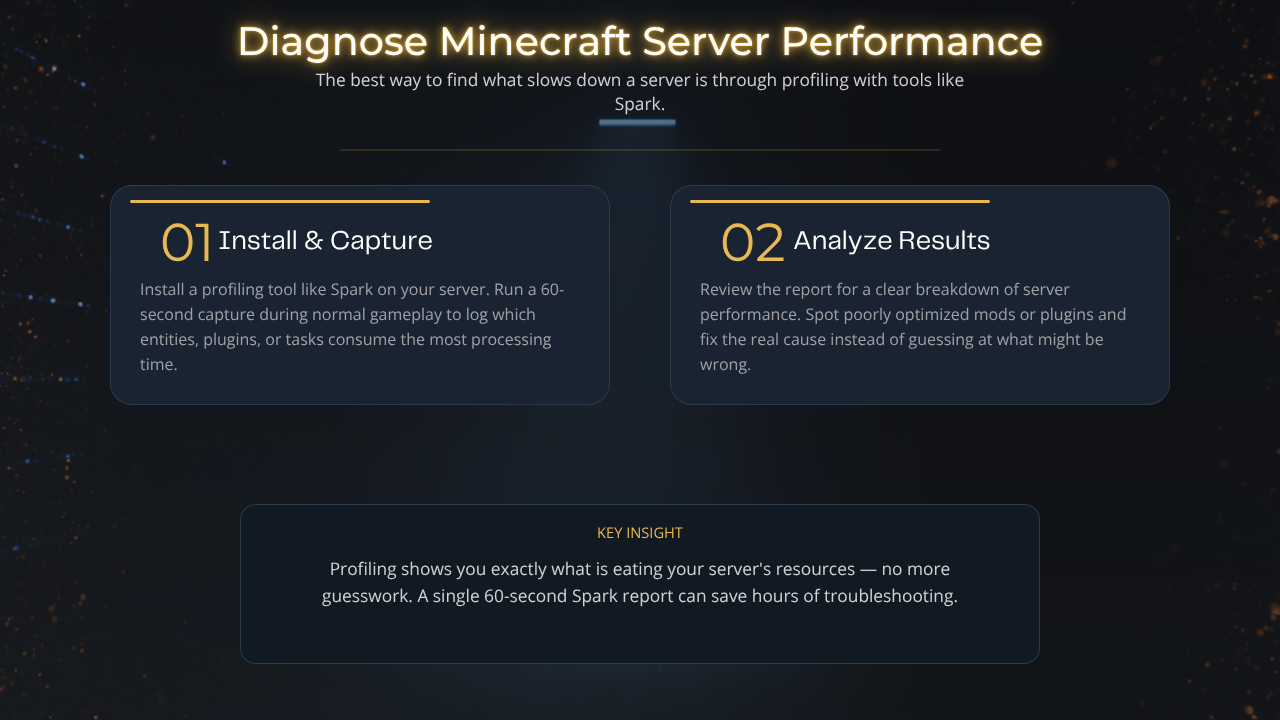
The best way to find what slows down a server is through profiling. To do that, you need to install a tool like Spark before capturing data over a set period. By collecting a 60 second report, the system logs which entities, plugins, or tasks take up the most processing time during normal gameplay.
Once the report is ready, looking at the results gives you a clear breakdown of server performance. This helps you spot mods or plugins that are poorly optimized, not just using too many resources. This makes it easier to fix the real cause instead of guessing.
Check Server TPS and Tick Spikes
Ticks Per Second, or TPS, measures the health of the game loop. Twenty TPS is the goal for a perfect experience. When this number drops, players experience delayed block placement and glitchy entity movement; for example, high latency can also delay damage registration during combat. Using commands like /tps helps administrators monitor these changes while the server is running.
Tracking these drops is important for finding patterns in lag. If TPS drops happen at specific times, such as during automatic backups or when players are active in large farms, those events are the likely causes. Monitoring these events allows you to make precise adjustments to those systems.
Inspect RAM Usage
Java memory management is a common source of performance trouble. If the memory is always full, the server works harder to clean up unused data. This causes small stutters in the game. Measuring how much RAM is actually used helps you decide if you need to add more.
If the memory usage stays near the maximum limit for a long time, it usually points to insufficient RAM, meaning the server may not have enough RAM to run smoothly; for many setups, a minimum of 8GB RAM is recommended for optimal gameplay. It can also trigger heavier garbage collection pauses. Adding more RAM gives the server space to run smoothly, but cpu usage and memory settings still need tuning. However, do not add too much without tuning, as this can sometimes lead to longer pauses while the system cleans up data. Monitor your usage trends carefully.
Confirm Minimum System Requirements
Different server types need different hardware to stay fast, and the host computer or machine specs determine how smoothly the server runs. A simple vanilla server runs well on basic hardware. Modded servers need much more CPU power and RAM to handle the extra load, and you may need to upgrade hardware if current resources are too limited or move to specialized Minecraft server hosting. Having the right resources from your host is the foundation of a lag free environment.
Solid State Drive storage is necessary for all modern servers to handle the fast read and write operations. Using old hard drives often leads to world loading lag. This is a hardware limitation that configuration changes cannot fix.
Optimize Server Software
The server software acts as the engine for your world. Using optimized versions like PaperMC is the best way to improve performance. These versions include built-in improvements for entity AI, chunk loading, and networking that standard software does not have. They also make it easier to improve server performance through safer defaults and tuning options. This provides a better experience right away.
Updating your server software to the latest stable release ensures you get all performance patches and security fixes. Adjusting max tick time to 240000 milliseconds can also prevent long tick events from crashing the server. Regularly removing unused plugins prevents the server from doing work it does not need to do, especially on Extreme Minecraft hosting hardware where you want to reserve resources for active gameplay. This frees up CPU power for the actual gameplay.
Enable Aikar's Flags for Better Java Performance
Using Aikar's flags for your server startup is the standard way to improve Java performance. These settings tell the system how to manage memory more efficiently. This reduces the length and frequency of pauses that happen when the server cleans up unused data.
Setting the garbage collector to G1GC is part of this configuration. It is designed for applications that need low delay. For the best stability, always set the minimum and maximum memory values to the same number. This prevents the server from constantly asking for more memory.
Server Properties to Improve Performance
The server properties file has several settings that directly impact the load on the server. Setting view distance to 6 is a strong starting point for better server performance because it reduces the number of chunks loaded around each player. This is one of the best ways to lower CPU and RAM usage on servers with many active players, and it often works best alongside optimal settings on the game side.
-
Reduce view distance to 6 to lower the number of loaded chunks.
-
Match simulation distance with view distance to keep processing localized, since high render and simulation distances increase calculation requirements for the server.
-
Lower the entity broadcast range to 60% to decrease the network load for mob updates.
Reduce Lag from Entities, Mods, and Plugins
Large mob farms are a leading cause of server lag because the CPU must process every single mob, and heavy entity counts can sharply increase CPU usage in mob farms. Using a profiler to find high entity areas allows you to fix these farms. You can redesign them to be less demanding or limit the number of entities in those areas.
Cleaner plugins help by removing dropped items or extra entities that consume power, and using performance mods like ClearLagg reduces server lag and related lag issues. Always keep your mods updated, as newer versions often include performance fixes that help reduce the strain on the server during normal gameplay.
Pre-generate Worlds and Chunk Management
Generating chunks while players explore is a task that uses a lot of resources. By pre-generating the world in active areas using tools, you move this processing to a time when it does not affect players. This makes exploration feel much smoother.
Running post generation checks ensures that your world is formed correctly without errors. Trimming old, unused world regions also keeps your file size small. This makes it faster for the server to perform backups and read data from the disk.
Network and Connection

If players experience delays despite the server showing high TPS, the issue is likely high ping or high latency. Measuring the ping of players from different regions helps determine if the server location is too far away. Latency over 200ms usually means the player's physical location is too far from the server. Ping above 100ms is generally poor for online gaming and creates a noticeable delay. Moving the server to a data center closer to your players or upgrading to a dedicated server hosting solution can solve this.
Enabling TCP optimizations on the host network can also improve how data moves between the server and the players. While this does not fix hardware limits, it ensures that the connection stays stable. This prevents erratic behavior for players with variable internet quality, since a poor connection can cause packet loss and rubberbanding, and a wired Ethernet connection is more reliable than Wi‑Fi for a stable connection when using any form of multiplayer game hosting.
Fix FPS Lag When Playing Minecraft
When a player experiences low FPS, the issue is usually local to their own computer rather than the server. Pressing F3 in the game shows the frame rate and hardware usage in the top left corner. This helps players see if their system is struggling to render the world. Lowering render distance is the fastest fix, and reducing graphics settings or using more optimal settings can help a laggy client get better performance, especially if they are playing on a budget Minecraft hosting plan with limited resources.
-
Lower the render distance in the video settings menu.
-
Disable VSync if you want higher FPS.
-
Check for background processes in Task Manager, review CPU usage, and then close unnecessary background applications that use your CPU or GPU.
-
Update graphics drivers to ensure full compatibility with the current game version.
Ray Tracing Requirements
Ray tracing increases the demand on a player's GPU, requiring more power and often leading to low frame rates that hurt the gaming experience. If players report lag despite having a good network connection or are running on enterprise Bedrock hosting hardware, telling them to disable ray tracing is the best way to get back a smooth experience.
Always tell players to keep their drivers updated, and note that they may need to update the operating system as well for full support for new graphical features. For the most accessible server experience, it is usually best to stick with standard settings instead of advanced lighting features that might not work well on older hardware.
Maintenance and Troubleshooting
Automated maintenance tasks are vital for long term server health. Configuring automated Server restarts on a schedule clears memory leaks and ensures the server starts fresh. Setting up alerts for low TPS events allows you to fix issues before they become major problems for your players.
When troubleshooting, follow a plan by recreating the lag consistently. For example, you can test connection quality from the command prompt with a ping command and press Enter to verify latency. Toggle plugins one at a time to find the cause. Compare your profiler results before and after making changes. This ensures that the steps you take are actually solving the issue and helps confirm whether your changes are actually fixing the underlying lag issues.
Conclusion and Next Steps
Fixing lag comes down to three main actions. You should profile the server to find bottlenecks, optimize startup flags for memory efficiency, and manage player loads like farms. Following these steps will give you the most immediate results for a smooth server experience.
If performance remains low after these optimizations, think about upgrading your hosting plan or moving to hardware with better single core speeds, since that can significantly improve results when your current setup is the bottleneck. Check your profiler after every major change to confirm that your improvements are helping the server stability.