How to Allow Players Join Minecraft Server: A Step-by-Step Guide
Learn how to easily allow players to join your Minecraft server with this step-by-step guide. Read on to get your friends connected today!

Shahrukh Sial is a Gaming Content Strategist at Sparked Host. He identifies his own strategic outlines through deep research to cover game guides, tips, and updates that help players improve their skills and enjoy a better gaming experience.
Running a Minecraft server on your own computer can be a fun way to play with friends without paying for hosting. The challenge usually begins when someone outside your home tries to join and gets a connection error.
In most cases, the problem comes down to network settings. Your router blocks incoming traffic by default, which means you need to create a rule that sends Minecraft traffic to the computer running the server.
This guide explains how port forwarding works, how to configure your router safely, how to deal with firewall settings, and what to do if your internet provider prevents traditional port forwarding. It also covers Dynamic DNS for changing IP addresses and troubleshooting steps for Carrier Grade NAT (CGNAT) issues that are becoming more common in 2026.
How do friends join your Minecraft server?
Quick Answer: Friends outside your home network need your public IP address and an open Minecraft port, which is usually TCP port 25565 for Java Edition. Port forwarding sends incoming Minecraft traffic from your router to the computer running the server. Without this configuration, your router rejects external connection attempts to protect your local network.
Minecraft Server Connection Methods
| Method | Cost | Difficulty | Best For |
|---|---|---|---|
| Port Forwarding | Free | Medium | Small private servers with static/dynamic public IPs |
| Tunneling Service | Free/Paid | Easy | Testing, temporary servers, or CGNAT situations |
| Professional Hosting | Paid | Easy | Public communities, large groups, and long-term stability |
What Is Port Forwarding for Minecraft?
Port forwarding is a network configuration that directs external internet traffic to a specific device on your local network. When someone tries to connect to your Minecraft server from outside your home, their computer sends data to your public IP address. Because multiple devices share your internet connection, your router needs instructions telling it which device should receive Minecraft traffic. Port forwarding creates those instructions.
Without this rule, your router sees the incoming Minecraft connection attempt as unsolicited traffic and blocks it by default. This is a standard security feature designed to prevent unauthorized access to devices on your network. By setting up port forwarding, you are explicitly telling your router: "Any traffic coming in on port 25565 belongs to the computer running my Minecraft server, so send it there."
This process does not expose your entire computer or network to the internet. It only opens a single, specific port for a specific purpose. As long as your server software and operating system are kept up to date, this is a safe practice for hosting private game sessions.
Minecraft Server Requirements Before Port Forwarding
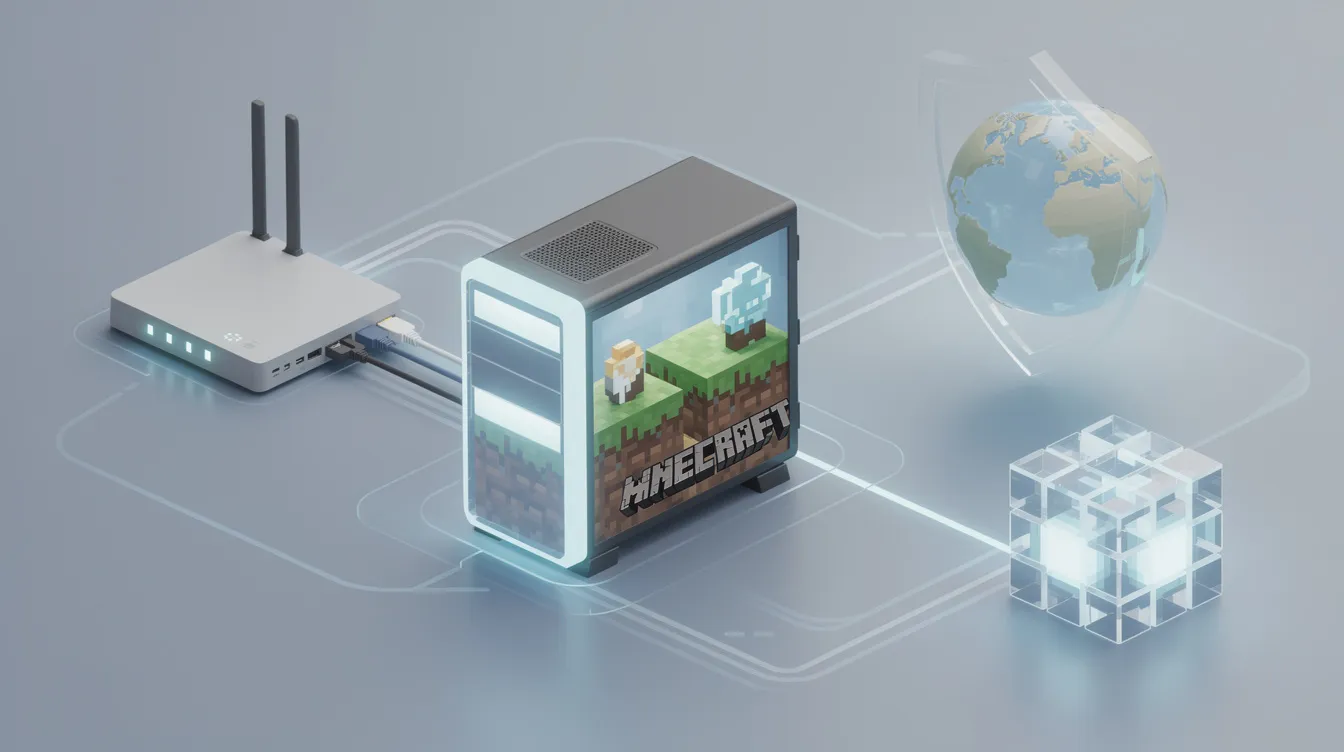
Before configuring your router, ensure your local server environment is ready. Attempting to forward ports for a server that isn't working locally will only lead to frustration.
-
Install Official Server Software: Download the Minecraft server JAR file directly from the official Minecraft website. Avoid third-party executables from untrusted sources.
-
Verify Local Connectivity: Run the server on your computer and attempt a direct connection test using localhost or 127.0.0.1 in the Minecraft client. You should get the server locally up and running before changing any router settings. If you cannot connect to your own server on your own machine, external players certainly will not be able to connect.
-
Confirm Port Settings: Open the server.properties file in a text editor. Look for the line server-port=25565. This is the default port for Minecraft Java Edition. If you have changed this number, you must use the new number for all port forwarding steps.
-
Check Antivirus Interference: Some antivirus software may flag the server JAR as suspicious because it listens for network connections. Add an exception for the Java executable and the server folder in your antivirus settings.
How to Find Your Local IP Address
To create a port forwarding rule, your router needs to know the specific local IP address of the computer running the server. This address is assigned by your router and typically starts with 192.168. or 10.0..
For Windows:
-
Press the Windows key, type cmd, and press Enter to open Command Prompt.
-
Type ipconfig and press Enter.
-
Locate your active network connection (Ethernet or Wi-Fi).
-
Find the line labeled IPv4 Address. This number (e.g., 192.168.1.50) is your local IP address.
For macOS:
-
Click the Apple menu and select System Settings.
-
Click Network in the sidebar.
-
Select your active connection (Wi-Fi or Ethernet).
-
Click Details or Advanced, then look for the IP address listed under the TCP/IP tab.
-
Alternatively, open Terminal and type ipconfig getifaddr en0 (for Wi-Fi) or ipconfig getifaddr en1 (for Ethernet).
For Linux:
-
Open your terminal.
-
Type hostname -I and press Enter or use ip addr to view your network interfaces and assigned addresses.
-
The first IP address listed is your local IP address.
Write this number down. You will need it to configure your router. If this IP address changes in the future, your port forwarding rule will stop working. To prevent this, consider assigning a Static IP or DH Reservation for the same local IP address in your router settings, so the port forwarding rule keeps pointing to the same machine.
How to Port Forward a Minecraft Server
Accessing your router's settings requires your default gateway address so you can access router settings through the router's IP address. On Windows, this is listed as "Default Gateway" in the ipconfig results. On macOS, it is listed as "Router" in your network details.
-
Access Router Admin: Open a web browser and enter your default gateway IP address (e.g., 192.168.1.1) into the address bar. If the page does not open, verify you entered the correct IP address. Log in with your router credentials. If you have never changed these, check the sticker on your router or the manufacturer's documentation, as some models still use default credentials until updated.
-
Locate Port Forwarding: Navigate to the section labeled Port Forwarding, Virtual Server, Applications & Gaming, or NAT. The exact name varies by manufacturer (e.g., Netgear, ASUS, TP-Link, Comcast).
-
Create a New Rule: Click Add Rule, Create Service, or Add Custom Service to create a new port forwarding rule.
-
Configure the Rule: Enter the following details:
-
Service Name: Minecraft (or any name you prefer)
-
External Port (Start/End): 25565
-
Internal Port (Start/End): 25565
-
Protocol: TCP (use the correct port and protocol for your server version; Minecraft Java Edition requires TCP. Some routers may ask for UDP or Both; if so, select TCP/UDP or Both, but TCP is the critical one).
-
Internal IP Address: Enter the local IP address you found in the previous section.
-
Status: Enabled
- Save and Apply: Save the rule. Your router may require a restart to apply changes.
This router configuration lets devices connected from outside your network reach the server; without it, only devices on the local network can connect.
How to Allow Minecraft Through Your Firewall
Configuring your router is only half the battle. Your computer's built-in firewall will likely block the connection even if the router is configured correctly. You must create an exception.
Windows Defender Firewall: Use windows firewall settings to allow the Minecraft port before testing external connections.
-
Search for "Windows Defender Firewall with Advanced Security" in the Start menu.
-
Click Inbound Rules in the left panel.
-
Click New Rule in the right panel.
-
Select Port and click Next.
-
Choose TCP and enter 25565 in the "Specific local ports" field.
-
Select Allow the connection and click Next.
-
Ensure all profiles (Domain, Private, Public) are checked, then click Next.
-
Name the rule "Minecraft Server" and click Finish.
macOS Firewall:
-
Go to System Settings > Network > Firewall.
-
If the firewall is on, click Firewall Options.
-
Click the + button and add the Java executable or the Minecraft server application.
-
Set the permission to Allow incoming connections.
Linux (UFW):
-
Open terminal.
-
If UFW is not installed, install ufw with sudo apt install ufw.
-
Run sudo ufw allow 25565/tcp.
-
Run sudo ufw reload.
How Friends Join Using Your Public IP Address
Your friends need your Public IP Address to connect. This is the address the internet sees, and it is different from your local IP address. In other words, it is the external IP address assigned by your ISP, not the private address your devices use inside your home network.
-
Find Your Public IP: Visit a site like whatismyip.com or search "what is my ip" in Google. Google will display your public IP at the top of the search results.
-
Share Connection Details: Provide your friends with your public IP address. They must enter it in the Minecraft Multiplayer menu as YourIP:25565. If you are using the default port, they can often just enter the IP, but including the port ensures clarity.
-
Test the Connection: Have a friend attempt to connect but make sure your Minecraft server running before an outside player tests it. If they cannot, use an online port checker tool to verify if port 25565 is open. Note that these tools will only show the port as open if your Minecraft server is currently running.
Use Dynamic DNS if Your Public IP Changes
Most residential internet providers assign dynamic IP addresses, which means your public IP address can change periodically. If your IP changes, your friends will no longer be able to connect using the old address.
A Dynamic DNS (DDNS) service solves this by providing a consistent hostname (e.g., myserver.ddns.net) that automatically updates to point to your current IP address whenever it changes.
-
Register for DDNS: Sign up for a free or paid DDNS service (e.g., No-IP, DynDNS, or similar providers).
-
Configure Router or Client: Most modern routers have a built-in DDNS client. Log into your router, find the DDNS section, and enter your account credentials. If your router does not support this, you can run a small client software on your computer that updates the IP address.
-
Share the Hostname: Give your friends the DDNS hostname instead of your IP address. They can use this address permanently, and it will always point to your current location.
Common Minecraft Port Forwarding Problems
Even with careful setup, issues can occur. Here are the most frequent mistakes and how to fix them.
-
Using the Wrong Local IP: If your computer's local IP changes, your forwarding rule points to the wrong device. Use a static IP address or DHCP reservation in your router so the rule always points to the same machine.
-
Forgetting Firewall Rules: A firewall can block connections even when the router is configured correctly. Double-check your firewall exceptions, then review your port forwarding settings to confirm the correct port is being forwarded.
-
Testing From the Same Network: Many routers do not support "loopback" or "NAT reflection," meaning you cannot test the connection using your own public IP while inside your own network. Ask a friend outside your network to test, or use a mobile device on cellular data (not Wi-Fi) to test.
-
Server Not Running: Port scanners and connection attempts will fail if the Minecraft server software is not actively running, and the correct port will not appear open unless the server is listening on it. Ensure the server console is open and operational before testing.
-
Public IP Changed: If you do not use Dynamic DNS and your ISP changes your IP, your friends will lose connection. Monitor your public IP and update your friends if it changes, or switch to a DDNS solution.
How to Fix CGNAT Issues
Carrier Grade NAT (CGNAT) is becoming increasingly common as IPv4 addresses become scarce. Many fiber, satellite, and mobile internet providers now place customers behind CGNAT by default. If you are behind CGNAT, your router does not have a public IP address, and standard port forwarding will never work.
How to Check for CGNAT: Compare the IP address listed on your router's WAN status page with the IP address displayed when you search "what is my ip" on Google. If these two numbers do not match, you are behind CGNAT.
Solutions:
-
Contact Your ISP: Call your internet provider and request a public IP address. Some providers offer this for free, while others may charge a fee or require a business account.
-
Use IPv6: If your ISP supports IPv6, you may be able to configure your server and router to use IPv6 addresses, which do not suffer from the same scarcity issues. However, all players must also have IPv6 support.
-
Switch to Tunneling or Hosting: If a public IP is unavailable, you must use an alternative method.
Alternatives to Port Forwarding
If traditional port forwarding is impossible due to CGNAT, lack of router access (e.g., in dorms or apartments), or complexity, other options exist, including managed Minecraft server hosting that removes the need to configure your own router.
Several tunneling services allow players to share a Minecraft server without configuring router settings. These tunneling tools create a secure public address that forwards traffic to your local computer. For example, Pinggy creates a secure tcp tunnel for a local Minecraft server and can be used instead of router port forwarding. Performance and free-plan limitations vary between providers, so compare features before choosing one, or consider budget Bedrock hosting plans if you want an always-online Bedrock server without relying on tunneling. These tools are generally suitable for temporary sessions or small groups but may introduce latency or require users to install additional software.
For long-term, large-scale, or public servers, enterprise Minecraft hosting remains the most reliable option. It eliminates the need for your computer to be on 24/7, provides dedicated resources, and includes built-in DDoS protection and support.
How to Secure a Public Minecraft Server
Once your server is accessible from the internet, it becomes visible to automated bots and potential attackers. Implementing security measures is critical.
Additional Security Recommendations
-
Enable Whitelisting: In server.properties, set white-list=true. Use the server console to add only trusted players (whitelist add [username]). This is the single most effective security measure.
-
Use Strong Passwords: Ensure your router administration password is strong and unique. Disable remote management features on your router unless absolutely necessary.
-
Keep Software Updated: Regularly update Java, your operating system, and the Minecraft server software to patch security vulnerabilities.
-
Trustworthy Plugins: Install plugins only from reputable sources like SpigotMC or Modrinth. Avoid downloading from random forums or Discord servers.
-
Limit Information Sharing: Do not share your public IP address on public forums, social media, or Discord servers. Only give it to people you trust personally.
-
Regular Backups: Maintain regular backups of your world data on an external drive or cloud storage. If your server is compromised or data is corrupted, a backup is your only recovery option.
-
Monitor Logs: Regularly check server logs for suspicious activity, such as repeated failed login attempts or unusual commands.
Frequently Asked Questions
Is port forwarding safe?
Port forwarding is safe if you follow best practices. It only opens a single, specific port for a specific application. As long as your server software, Java, and operating system are kept up to date, and you use a whitelist, the risk is minimal.
Why can't my friends connect even after port forwarding?
This is usually due to a firewall blocking the connection, an incorrect IP address, or CGNAT restrictions. Verify your firewall settings, ensure you are using the correct public IP and correct IP address, and check if your ISP uses CGNAT. If the router login page will not open, verify the router's ip address and router credentials before troubleshooting the server further.
Can I host a Minecraft server on a dynamic IP?
Yes, but your friends will lose connection if your IP changes. Use a Dynamic DNS (DDNS) service to create a permanent hostname that updates automatically when your IP changes.
What if my ISP uses CGNAT?
If your ISP uses CGNAT, you cannot use standard port forwarding. You must either request a public IP from your ISP, use a tunneling service, or switch to a professional hosting provider.
Do I need to forward ports for Bedrock Edition?
Yes, the process is similar, but Bedrock Edition uses the udp protocol, so configuring port forwarding means allowing udp ports 19132-19133 instead of TCP port 25565. Ensure you select the correct protocol and port number for your specific version. Bedrock cross-play joining often relies on Microsoft/Xbox accounts rather than manually entering an IP address.
Conclusion
Port forwarding remains one of the most practical ways to host a Minecraft server for a small group of friends without paying monthly hosting fees. It requires more setup than using a hosting provider, but it also gives you complete control over your world and server settings when you run your own Minecraft server, while Minecraft realms is simpler because it avoids router port forwarding.
Take time to test your configuration, keep backups of your world, and review security settings regularly. If traditional port forwarding is unavailable because of CGNAT or shared internet, tunneling services and professional hosting remain reliable alternatives.
Once everything is configured correctly, your friends can join your server from almost anywhere and enjoy a stable multiplayer experience. Remember that maintaining a secure server is an ongoing responsibility, so stay vigilant with updates and access control.